
What is Moodle?
Moodle is the main learning technology platform at TRU. It is a robust, flexible learning management system (LMS). In other words, it is the primary online learning space for your courses.
Moodle is one of the main ways that you have to communicate with your instructors and colleagues and participate in your courses. It is likely that you will be required to use Moodle for most or all of your courses, so it is important that you familiarize yourself with its features and learn how to efficiently navigate it.
Every instructor will use Moodle differently. For that reason it is important to check Moodle regularly.
What will I use it for?
Your experience in Moodle may differ depending on how your instructor chooses to use it and the delivery method of your course. You may use it to:
How do I use it?
Jump to Section
Accessing Moodle
Your Moodle Dashboard
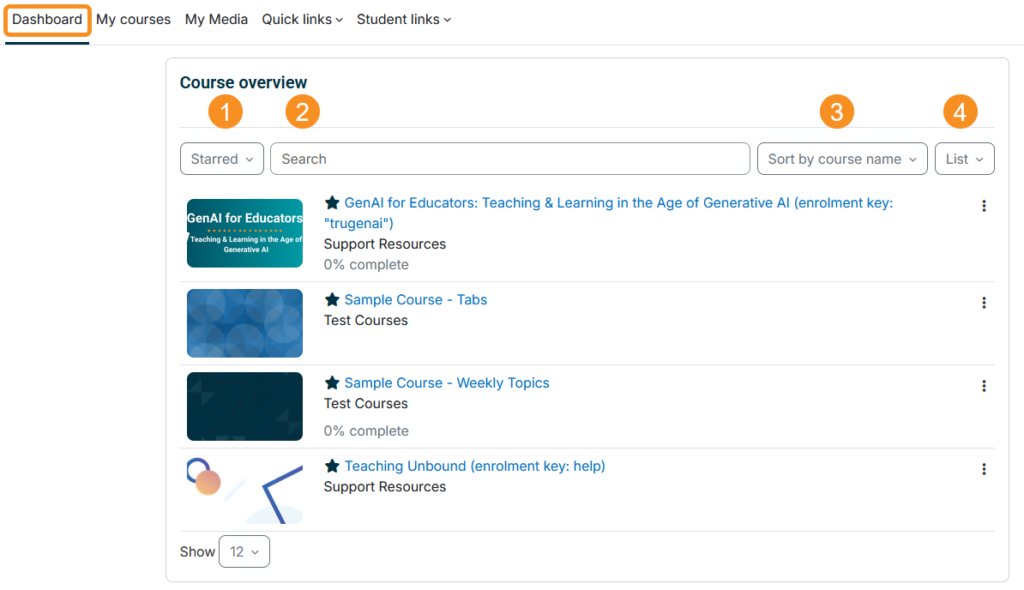
The dashboard is your landing page after logging into Moodle. You will find your available courses in the Course Overview block. You can also access your enrolled courses by clicking on the My Courses link in the header.
The Course Overview block has several options to make it easier to find and sort your courses:
- Sort your courses by All, In progress, Future, Past, Starred, Removed from view
- Search for one of your courses
- Sort your courses by name, last accessed, or start date.
- Display your courses in a card, list, or summary format.
Campus courses: Campus-based courses are made available to students at the discretion of the course instructor, usually during the first week of classes.
Open Learning Courses: Courses offered in a self-paced format usually become available in Moodle within 24 hours after registering, provided there are no delays or additional registration requirements. Be sure to check your TRU student email after registering. Courses offered in a paced format become available in Moodle on the start date of the course.
Lorem ipsum dolor sit amet, consectetur adipiscing elit. Maecenas condimentum sodales ipsum vel varius. Nunc rhoncus tellus sit amet diam vulputate scelerisque. Quisque iaculis, arcu at laoreet pharetra, libero lacus vulputate nunc, et aliquet ex tellus nec magna. Proin eget pretium sapien. Donec porttitor venenatis risus, quis sollicitudin risus porttitor quis. Maecenas vitae magna et nibh viverra feugiat. Aenean finibus accumsan ultrices. Nam a tellus iaculis, laoreet risus in, condimentum elit.
Lorem ipsum dolor sit amet, consectetur adipiscing elit. Maecenas condimentum sodales ipsum vel varius. Nunc rhoncus tellus sit amet diam vulputate scelerisque. Quisque iaculis, arcu at laoreet pharetra, libero lacus vulputate nunc, et aliquet ex tellus nec magna. Proin eget pretium sapien. Donec porttitor venenatis risus, quis sollicitudin risus porttitor quis. Maecenas vitae magna et nibh viverra feugiat. Aenean finibus accumsan ultrices. Nam a tellus iaculis, laoreet risus in, condimentum elit.
Navigating Your Course
Your Profile and Preferences
Communicating in Moodle
Completing Assessments & Activities
Moodle’s Assignment activity is where you’ll find instructions and deadlines for an assignment, submit your work (usually as a file, such as a Word document, PDF, Excel spreadsheet etc.), and view your grade and instructor feedback.
The following instructions detail how to submit an assignment file.
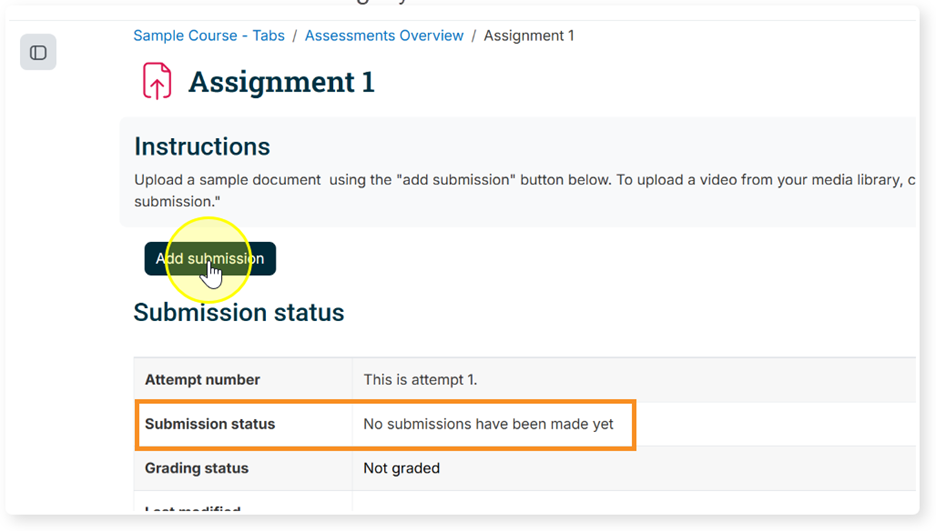
- Your submission status will indicate “No submissions have been made yet.” Click “Add submission” to begin your submission.
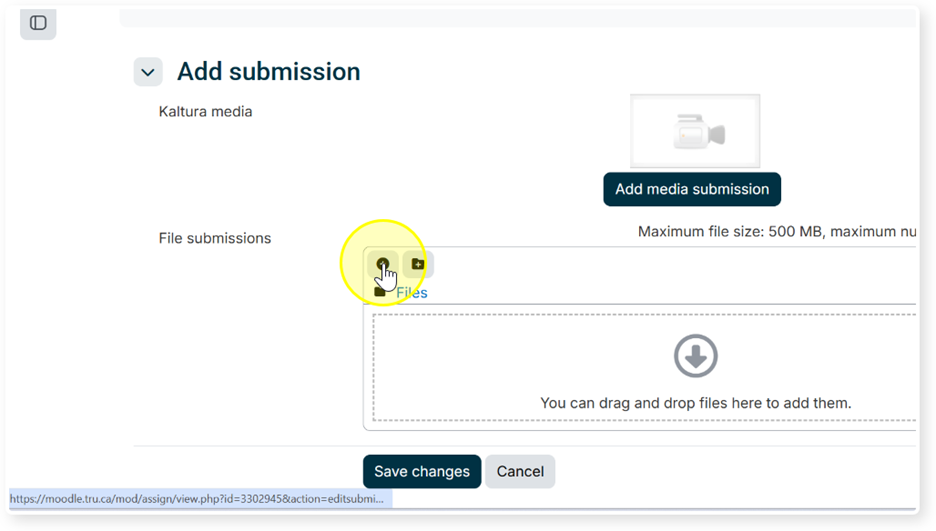
2. Next, you will be asked to upload your assignment file. This space may indicate if a specific file type is required and will note the maximum file size accepted. Click the “Add File” icon or drag and drop your file in the space provided.
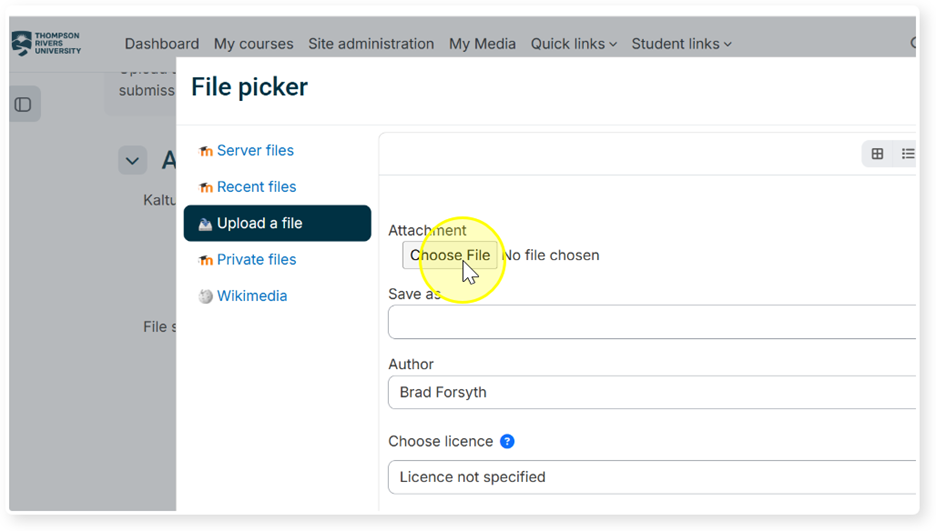
3. Click “Choose File” and locate your file on your computer.
4. Click “Upload this file”
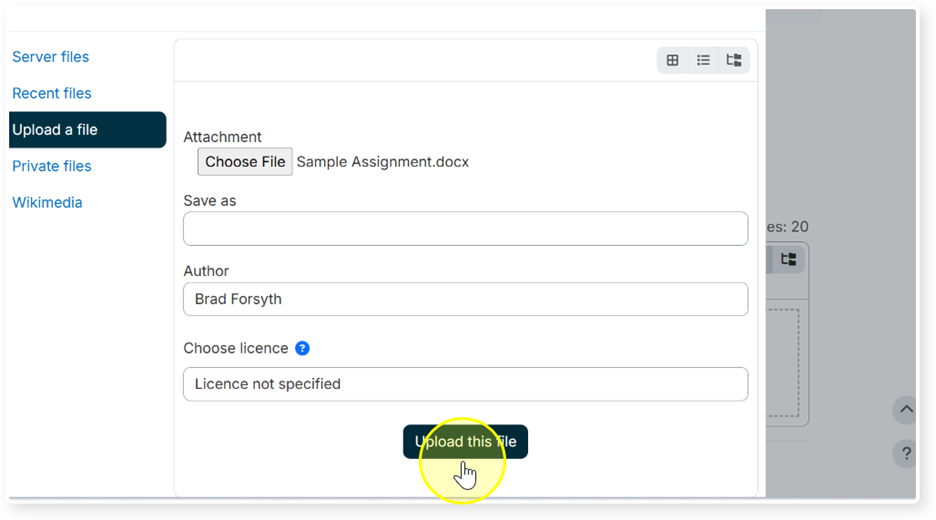
5. Click “Save changes”
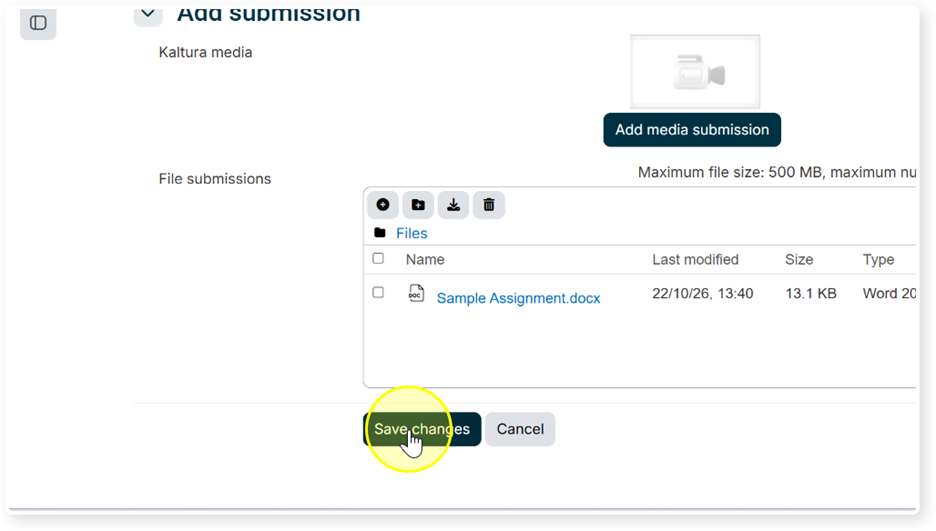
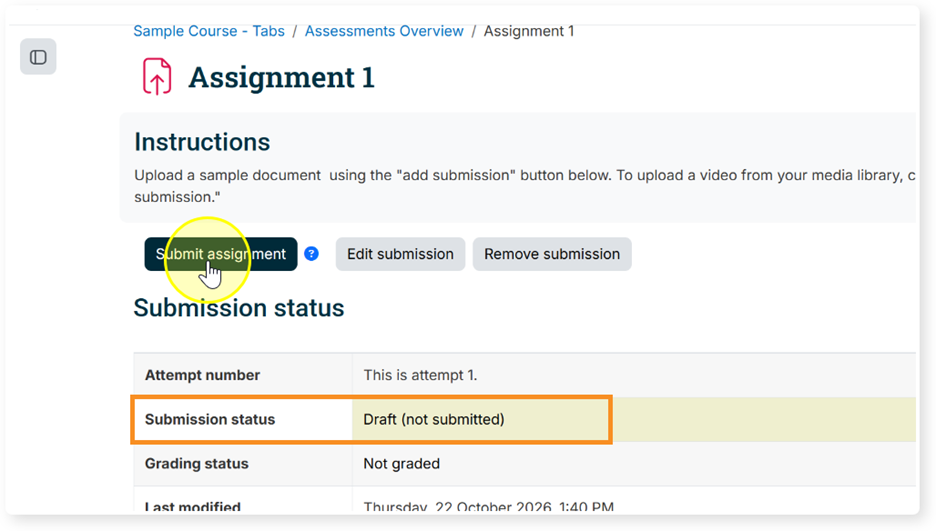
6. Your submission status will update to “Draft.” This means your assignment has not been submitted. Click “Submit assignment.”
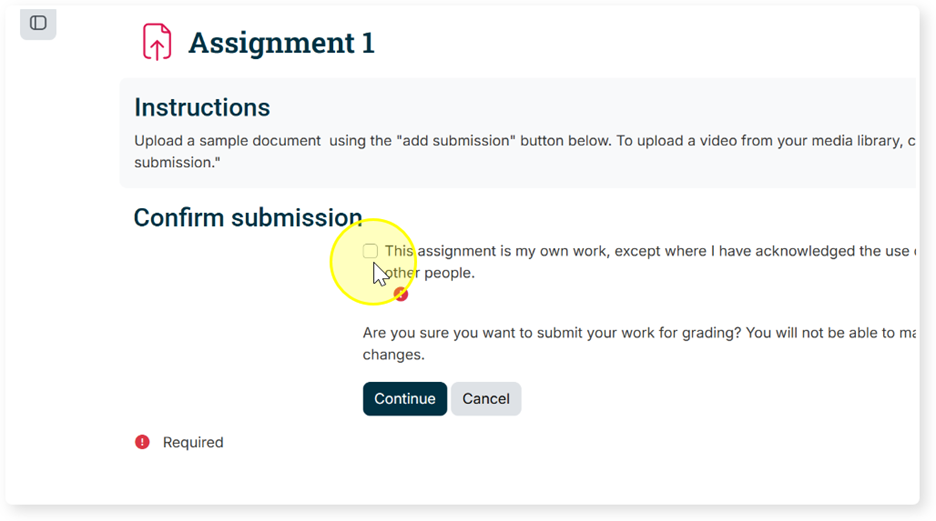
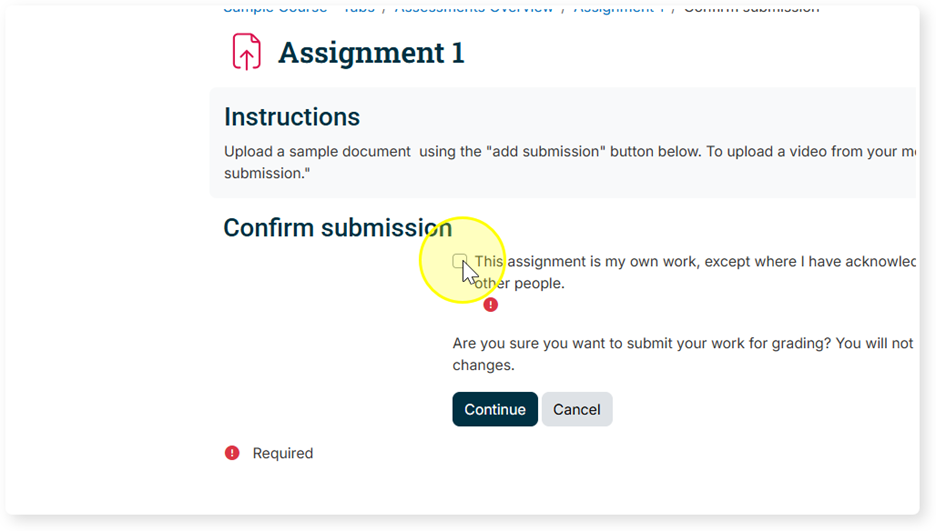
7. To confirm your submission, self-declare that your assignment is your own work by selecting the declaration checkbox, then click “Continue.”
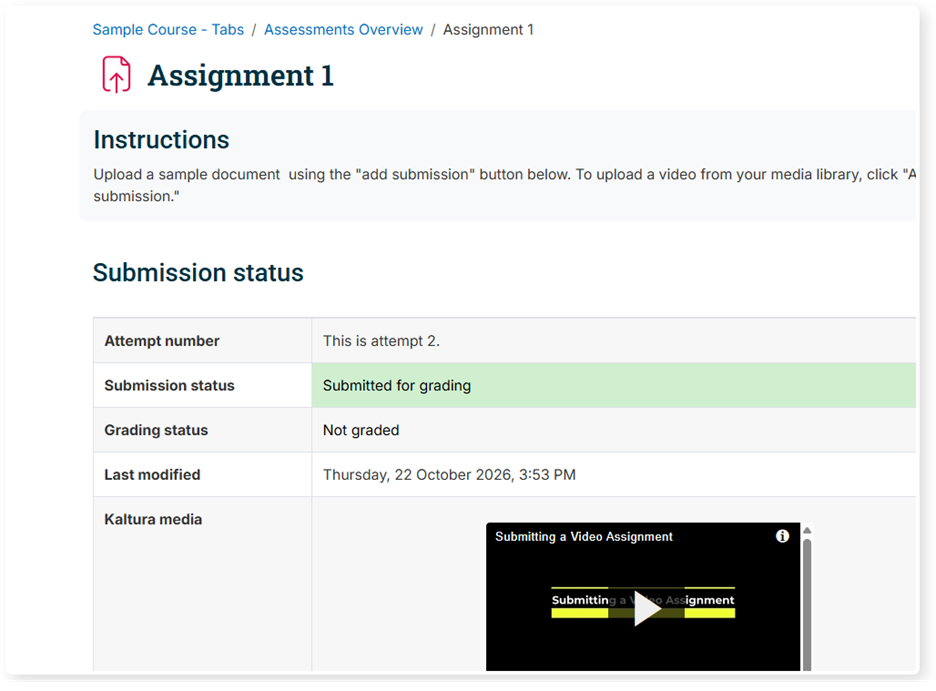
8. Your submission status should now indicate “Submitted for grading.”
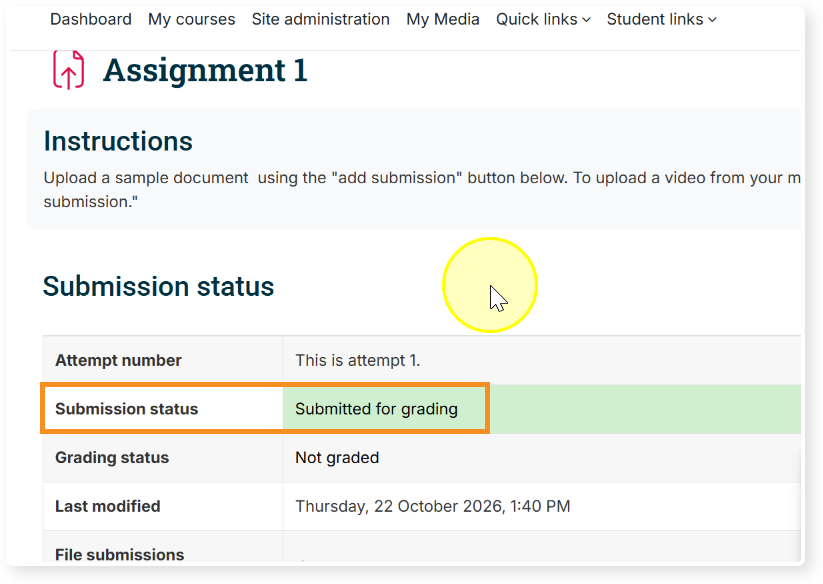
With our Kaltura Media service, you can upload an existing video file or record a new video directly in Moodle. Your video can then be shared with your peers through a discussion forum or submitted privately to your instructor through an assignment drop box. Completing a video assignment in Moodle is done in two distinct phases: (1) upload an existing video file or record a new video using Kaltura Media, and (2) sharing or submitting your video to an activity.
Phase 1: Upload or Record Your Video Using Kaltura Media
To access Kaltura, select “My Media” from the header menu. This is your personal media library. It can be accessed from anywhere in Moodle. Select “Add New.”
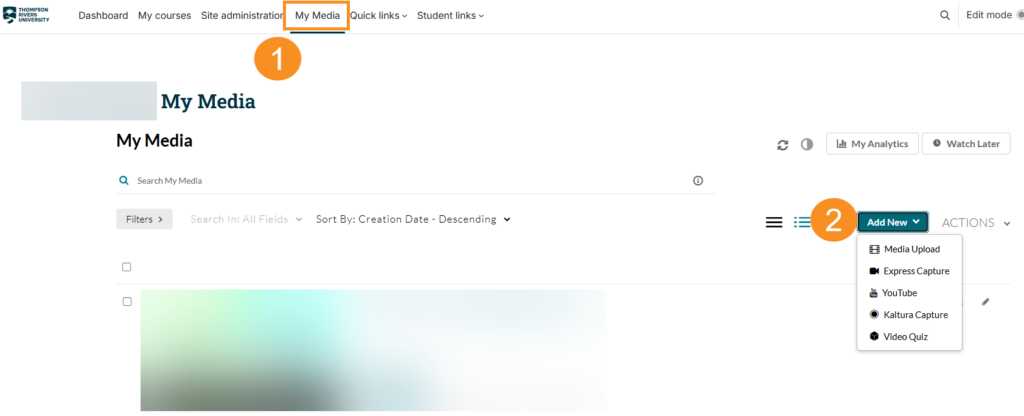
There are three options to pay attention to:
- Media Upload: upload an existing video file from your computer
- Express Capture: quickly record your webcam and microphone
- Kaltura Capture: record your webcam, microphone, and computer screen (download required)
If Media Upload is selected, you will be prompted to select a file from your computer. Be sure to save your changes. For guidance on recording new videos, refer to our Kaltura Tutorials for Students video playlist.
Phase 2: Share or Submit Your Video
You may be asked to share your video to a discussion forum activity, to be viewed by your classmates. The following steps will outline how to do so.
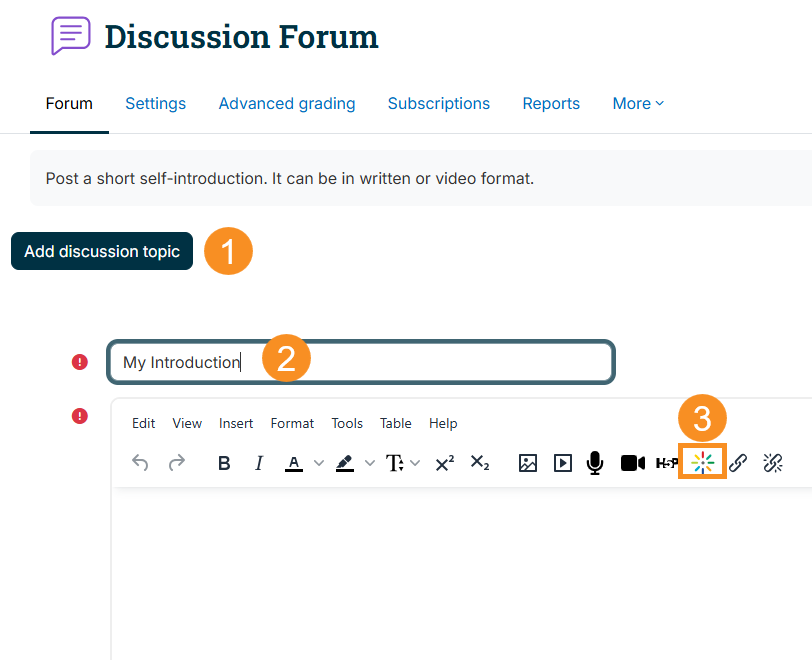
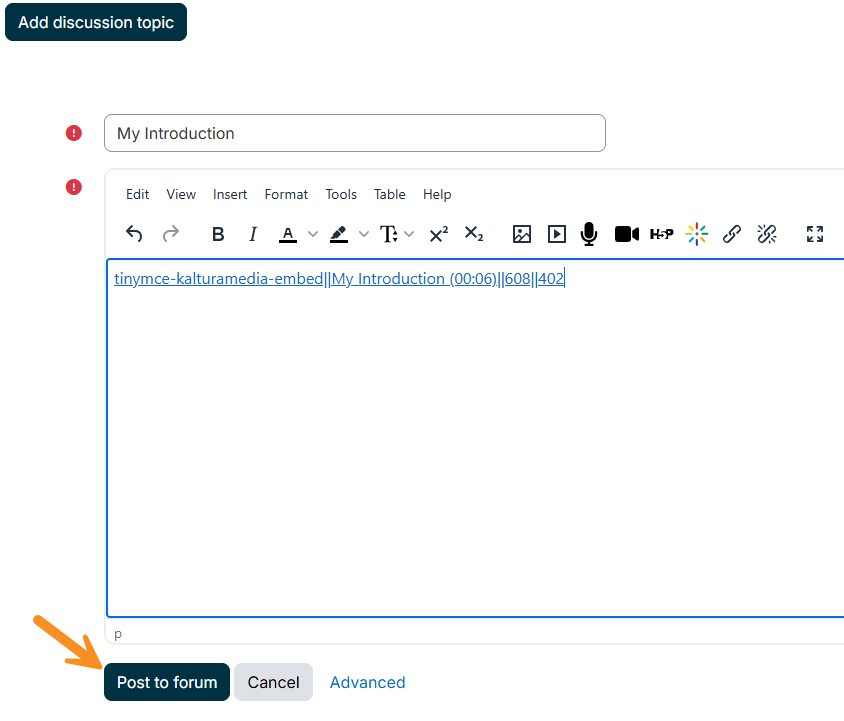
1. In the discussion forum, click the “Add discussion topic” button. Give your post a subject (e.g. “My Introduction”). In the text editor, click on the “Embed Kaltura Media” button.
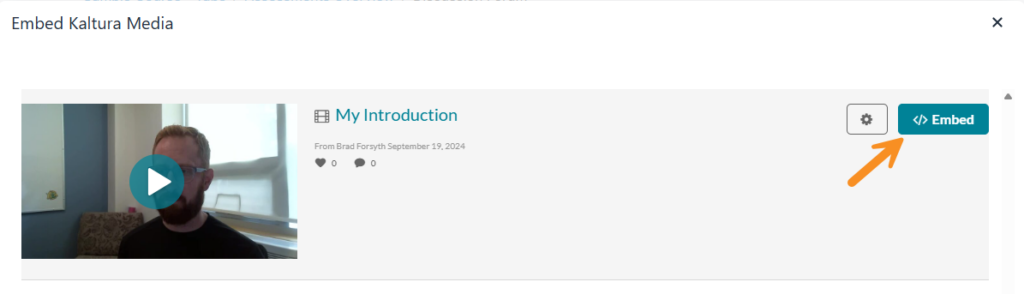
2. Find your video in your My Media list, and click “Embed.”
3. You will see the embed code in the text editor. Click “Post to forum” to share your video.
Alternatively, you may be asked to submit your video to an assignment activity. The following steps will outline how to do so.
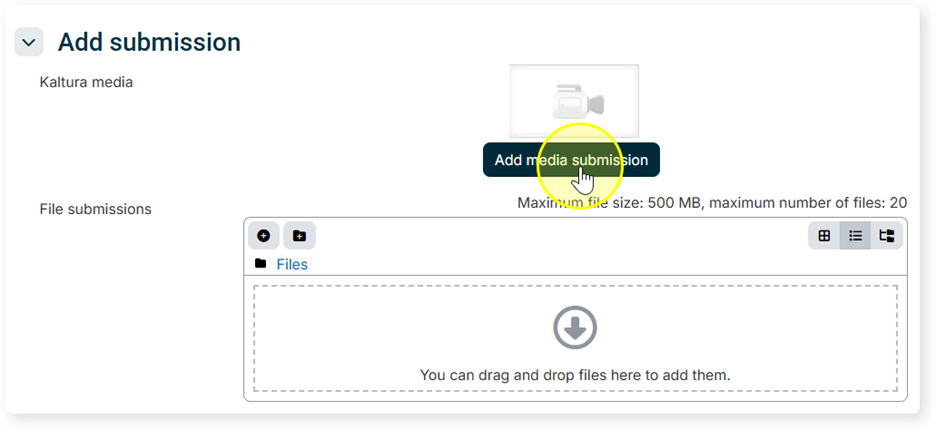
1. Your submission status will indicate “No submissions have been made yet.” Click “Add submission” to begin your submission.
2. Click “Add media submission.”
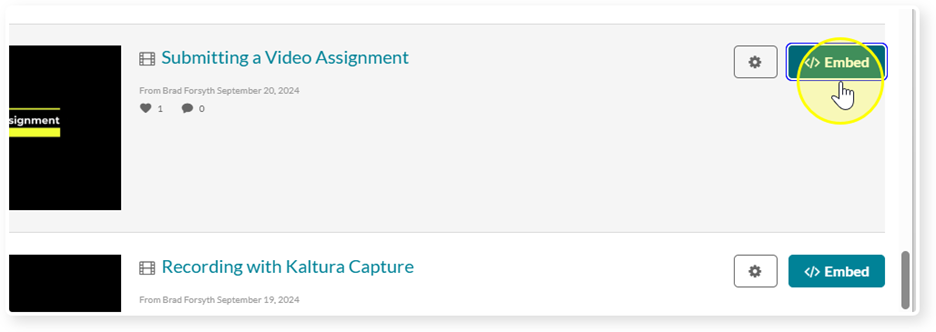
3. Locate the relevant video from your My Media list and click “Embed.”
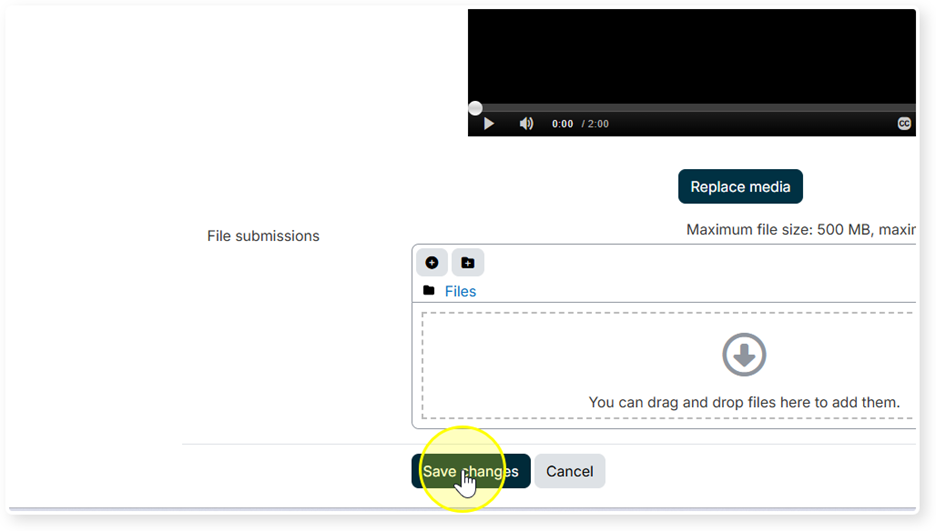
4. Click “Save changes”
5. Your submission status will update to “Draft.” This means your assignment has not been submitted. Click “Submit assignment.”
6. To confirm your submission, self-declare that your assignment is your own work by selecting the declaration checkbox, then click “Continue.”
7. Your submission status should now indicate “Submitted for grading.”
Moodle’s quiz activity is where you will complete timed assessments. These may be graded or ungraded, and questions come in a variety of different types.
Starting the Quiz
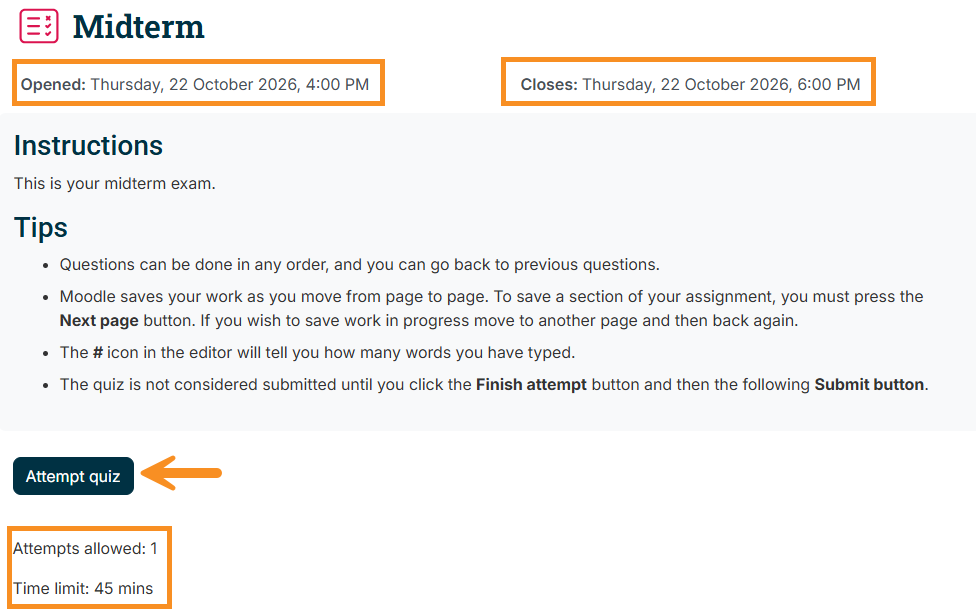
1. In the quiz activity you will find relevant information regarding the quiz, such as the start and close date, the number of attempts allowed, and the time limit. Click “Attempt quiz” to begin the quiz.
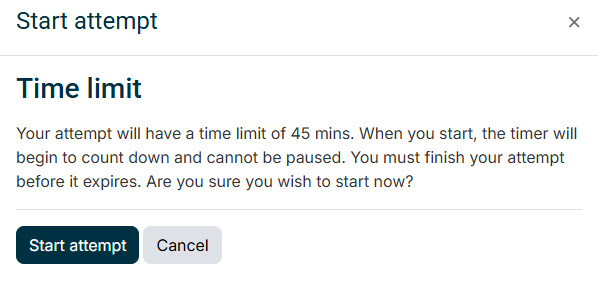
2. When you are ready, click “Start attempt” in the pop-up window to confirm.
Quiz Features and Navigation
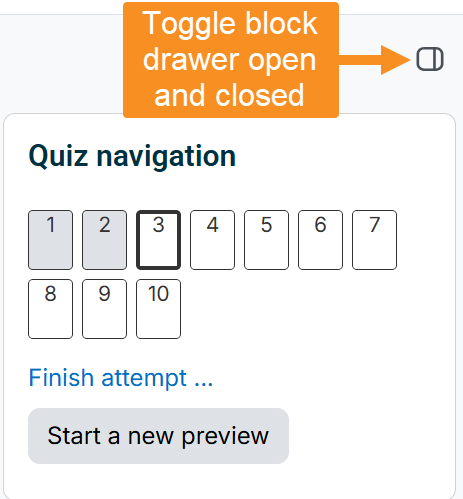
The quiz navigation block located in the block drawer tracks which questions you have answered. The Block Drawer can be toggled opened and closed. Click on a question to quickly jump to its location or use the “Previous Page” and “Next Page” buttons located on the bottom of each page of the quiz.
NOTE: Moodle automatically saves your responses each time you navigate to a new page in the quiz.
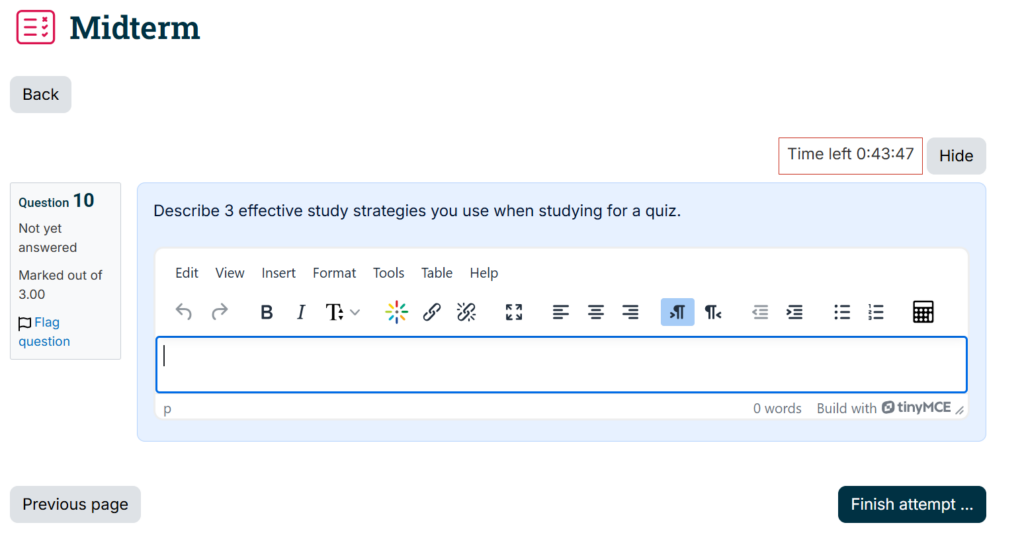
To the left of a question, you will see a box indicating the question number, the maximum number of marks that can be received for the question, and an option to flag the question. Flagged questions will have a “red corner” in their box in the navigation panel. The time left on your quiz attempt will be displayed above the question on each page of the quiz.
Submitting Your Quiz
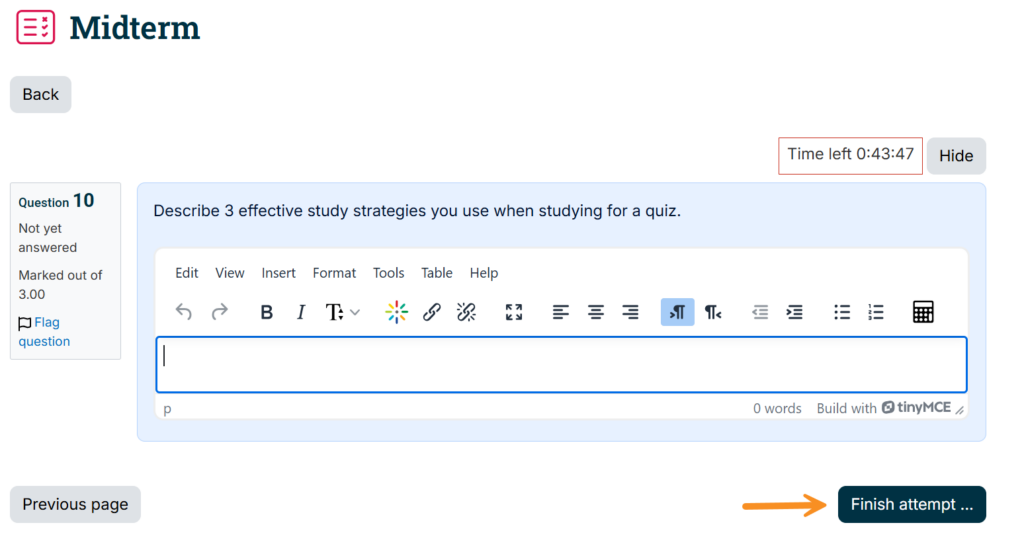
1. Once all questions have been answered, select the “Finish Attempt” button on the last page of the quiz.
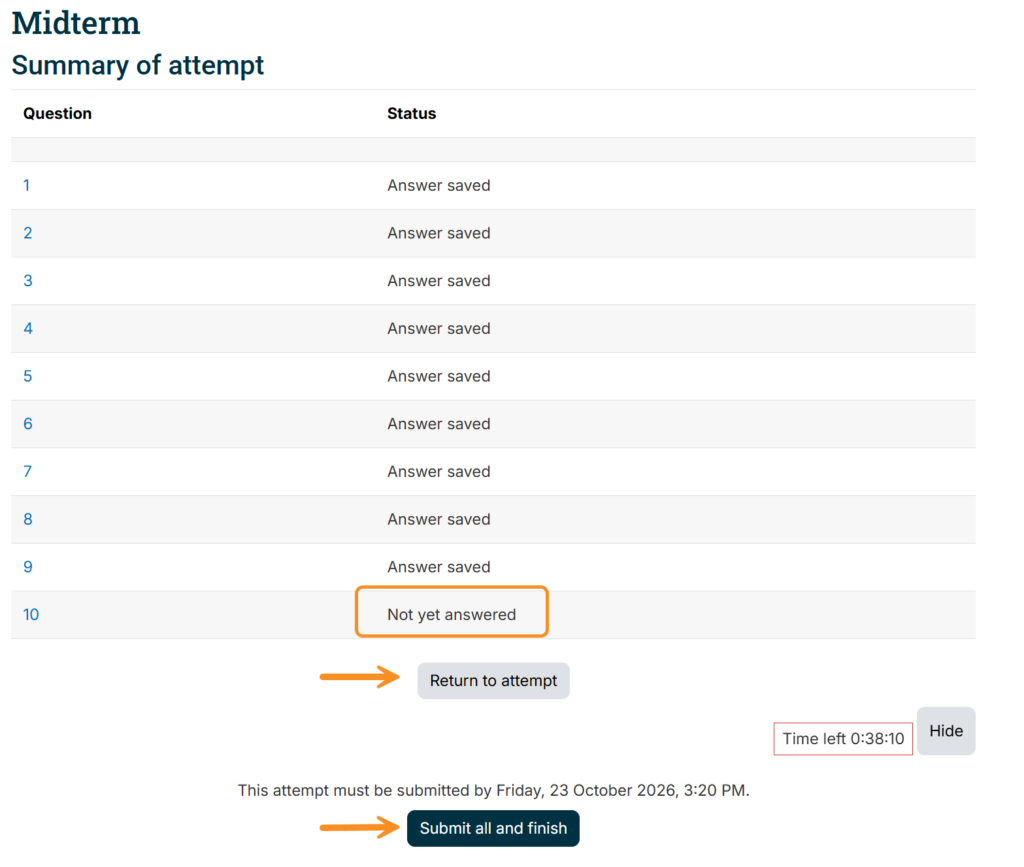
2. After selecting “Finish attempt,” you will have the opportunity to review a summary of your quiz attempt before finalizing your submission. Ensure that all questions have been answered. You will have the opportunity to return to your quiz attempt if you missed a question or would like to update an answer. When you are ready to finalize your submission, select “Submit all and finish.”
Reviewing Your Quiz
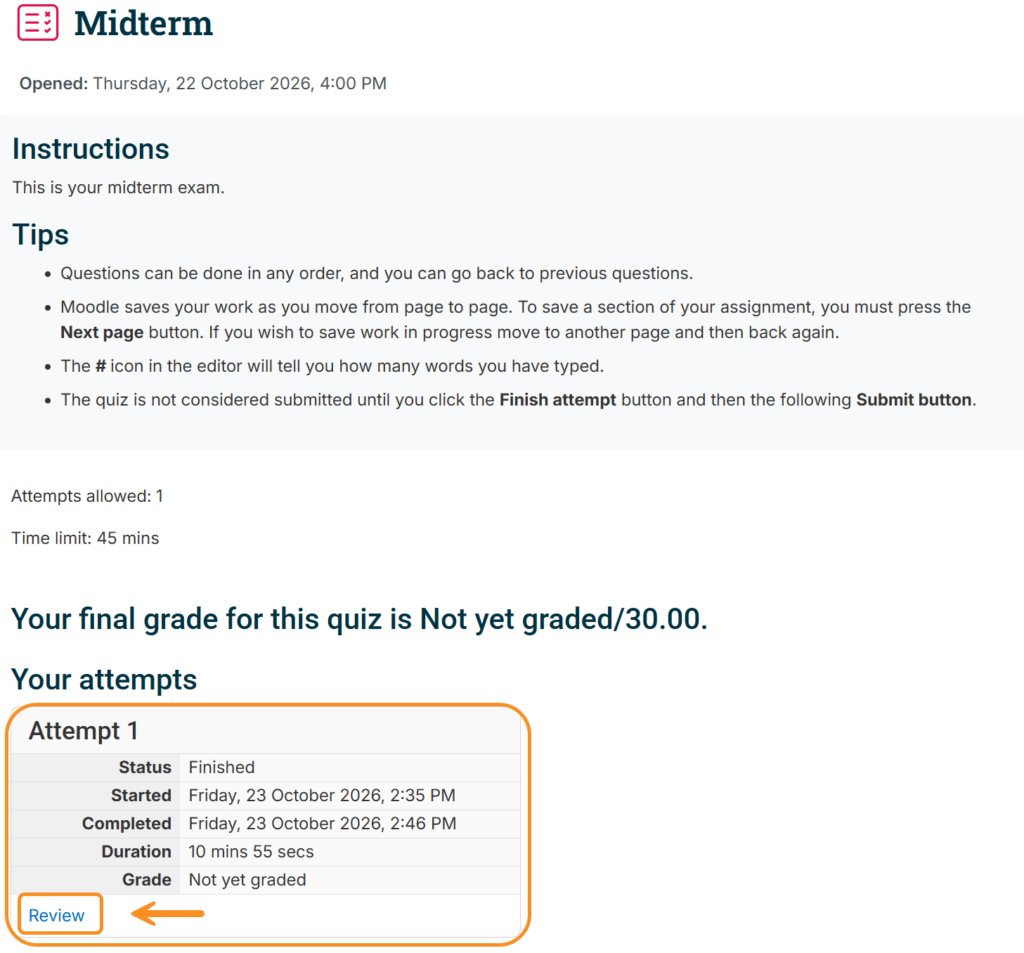
After you have completed your quiz, the status of your quiz attempt will be displayed at the bottom of the activity. If your instructor has enabled it, you can review your quiz attempt. Depending on how the quiz review options were configured, you may be able to see an overview of your quiz attempt, whether each question was marked correct, your awarded marks/possible marks for each question, and feedback.
NOTE: Moodle will automatically mark many question types, but some questions will require your instructor to grade before your final mark is provided.
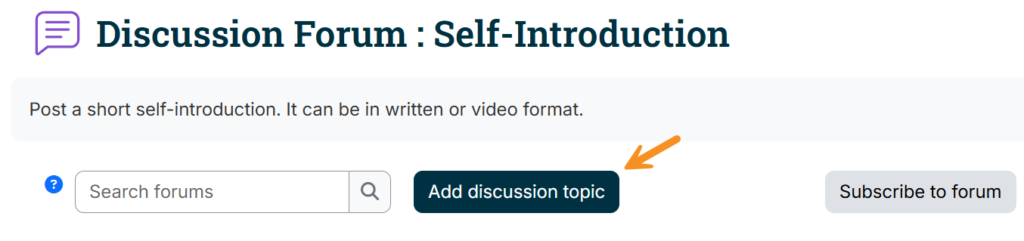
Moodle’s discussion forums are a place to share ideas, ask questions, and have conversations with your classmates and instructors virtually. You can post your own thoughts, reply to others, and take part in class discussions at your own pace. Forums may be graded or ungraded.
To add a new discussion topic, i.e., an original post, select “Add discussion topic.”
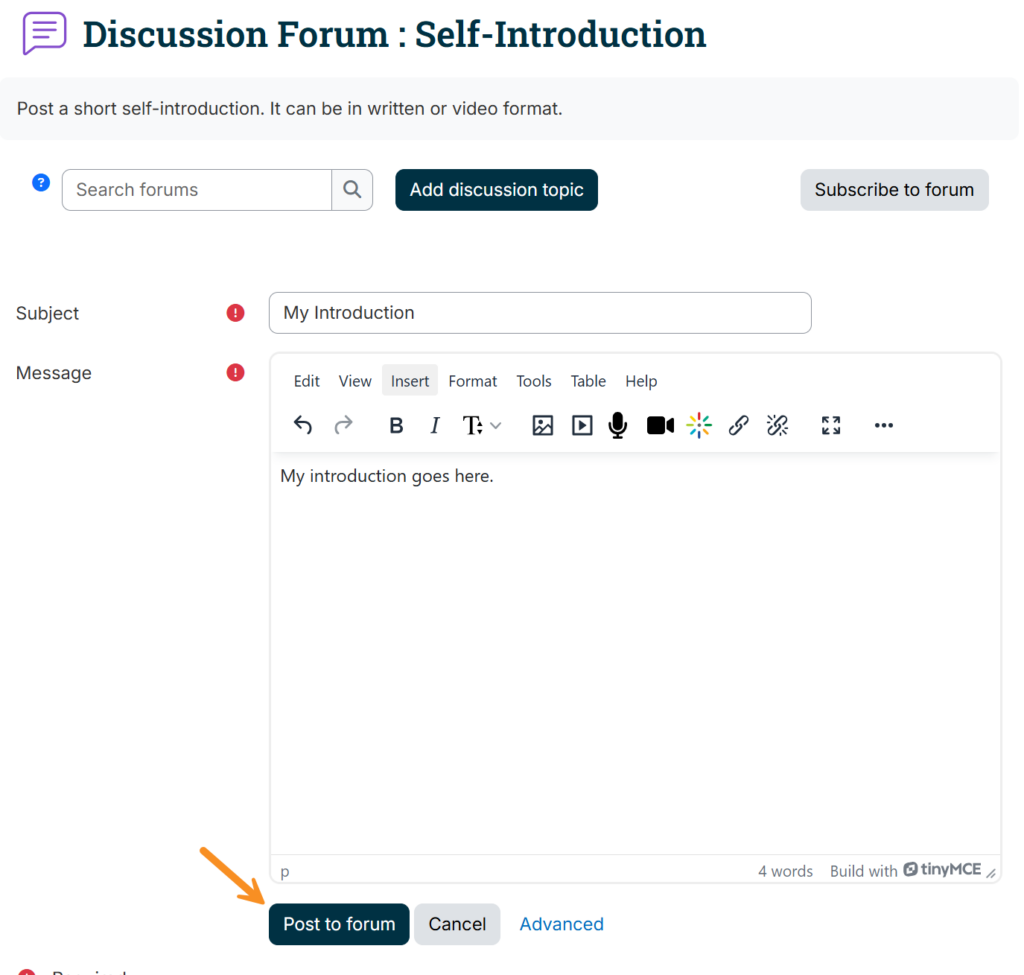
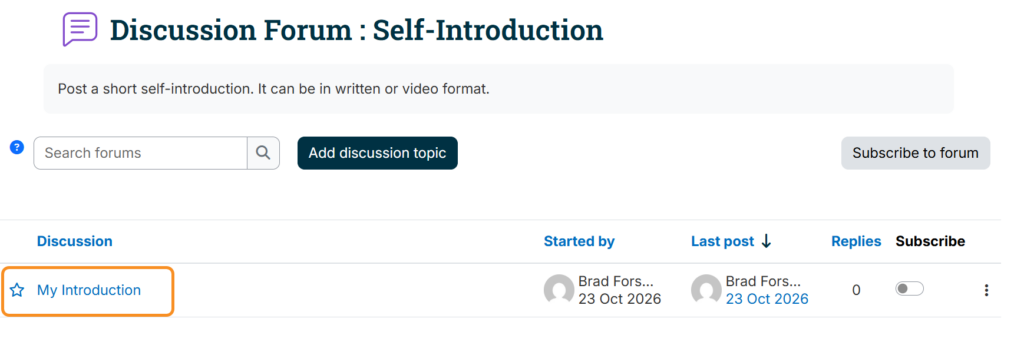
This will open the Moodle text editor. You will be required to enter a subject for your post, which will appear on the page displayed in the previous figure. Enter the body of your discussion post in the message field. You can add text, images, audio/video, and links. Hover over each icon for a description of their function. When you are ready to post, select “Post to forum.”
To reply to another student, simply click on the subject of their post.
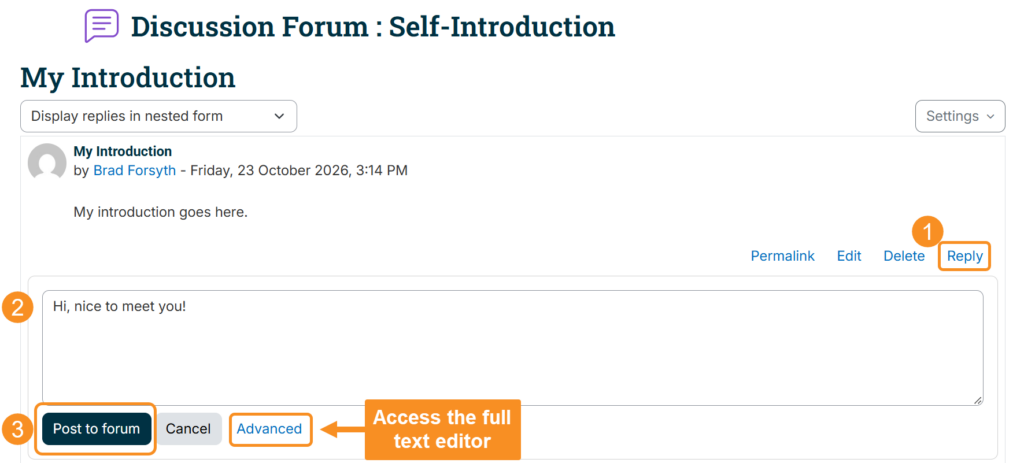
You will be brought to the student’s post. Select “Reply” to open a basic text box to enter your response, and then select “Post to forum” when you are ready. Select “Advanced” to access the full Moodle editor if you need additional options such as audio or video in your response.
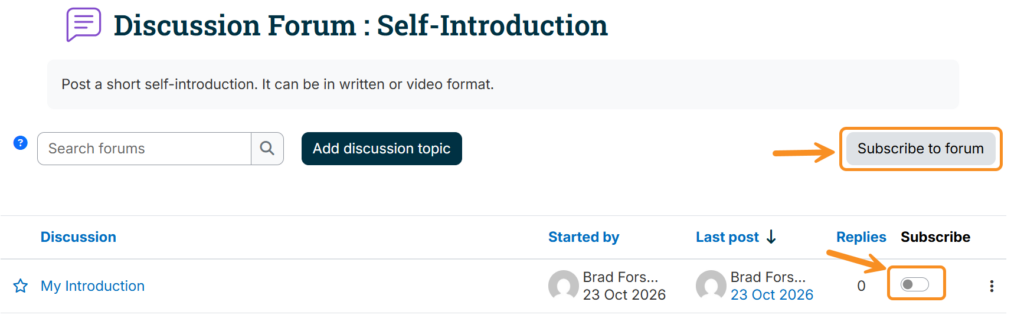
You can also choose to subscribe to a forum or particular thread to receive email notifications of new posts and replies (see How do I update my forum preferences? above).
Need Additional Help?
If you have questions about your course related to attempting a quiz, submitting an assignment, deadlines, or accessing course resources, contact your instructor first. They are your best point of contact for help related to your specific course.
If you need further technical assistance with Moodle, contact us at moodlesupport@tru.ca.
If you need assistance logging into Moodle, contact the IT Services Desk through the IT Services Portal.